How to Export Shopee, Lazada & TikTok Shop Data to Google Sheets
A detailed guide to the two practical export methods: downloading marketplace files manually or using Spyliner to keep repeat reports in Google Sheets.


Marketplace dashboards are useful for quick checks, but recurring analysis usually ends up in Google Sheets. Teams use a spreadsheet to compare stores, reconcile orders, review campaign results, prepare finance reports, and share a consistent view of performance.
There are two practical ways to move the data. You can download a report from Seller Center and import it manually, or you can use Spyliner to save the source, columns, destination, and refresh schedule as a reusable task. This guide walks through both methods in detail so you can choose based on how often the report must be updated.
Two practical options
Choose manual export for occasional work and Spyliner for repeat reporting
Manual export is the shortest path when you need a file once, the marketplace already provides the exact report, and nobody expects the spreadsheet to remain current. You control the date range and file, but you also own every repeated download, import, cleanup, and version check.
Spyliner is designed for reports that come back every day, week, or month. Instead of rebuilding the transfer, you connect a supported marketplace account once and save a task that describes what to fetch, which columns to keep, where to write them, and when to refresh.
- ✓Use manual export for one-off investigations, historical files, or unsupported datasets.
- ✓Use Spyliner when the same supported report must be refreshed reliably in the same workbook.
- ✓Keep raw imported data separate from formulas and dashboards whichever method you choose.
Option 1 — prepare first
Decide exactly which manual report you need
Before downloading anything, write down the business question. An order-status check needs order identifiers, status, timestamps, buyer totals, discounts, and fulfilment fields. A payout reconciliation needs settlement references, fees, adjustments, and net amounts. Exporting every available report creates more cleanup without guaranteeing the fields can be joined.
Confirm the marketplace account, store, timezone, date basis, and date range before running the export. A report filtered by order-created date will not necessarily match one filtered by payout date or completed date. Record those choices in a small Notes tab so the next person can reproduce the result.
Option 1 — step by step
Download the file and import it into Google Sheets safely
- 1
Open the correct Seller Center
Confirm the marketplace, country, store name, and signed-in account before selecting a report.
- 2
Set the report filters
Choose the dataset, date basis, date range, status filters, and any store or campaign filters. Save a screenshot or note if the report will be repeated.
- 3
Generate and download the report
Wait until the marketplace marks the export ready, then download the CSV or spreadsheet file without renaming its columns.
- 4
Create a raw-data tab
Use a dedicated tab such as Raw_Shopee_Orders_2026_09. Do not import directly over formulas, pivot tables, or manually maintained notes.
- 5
Import with the right action
In Google Sheets, use File, Import, Upload. Replace the raw tab for a full snapshot or append only when the file and your deduplication process are designed for incremental data.
- 6
Check types and row counts
Confirm identifiers remain text, dates use the intended timezone, decimal separators are correct, and the imported row count matches the downloaded report.
- 7
Connect analysis tabs
Point formulas, pivots, or dashboard queries to the raw tab. Keep transformations outside the imported range so the next refresh cannot overwrite them.
Make manual work repeatable
Use a checklist to prevent duplicates and broken formulas
A manual process becomes risky when several people update the same workbook. Agree on one owner, one refresh time, one date convention, and one rule for replacing or appending data. Put the last successful refresh time and source date range where report users can see them.
If you append exports, define a stable key before the second import. An order can appear more than once because its status changes, while an order-item report may contain several rows for one order. Deduplicate at the correct grain instead of assuming the order number is always unique.
- ✓Archive original downloads in dated folders before changing them.
- ✓Never mix two stores in one raw tab unless a store column is present and validated.
- ✓Protect formula and dashboard tabs from accidental imports.
- ✓Compare totals with Seller Center after each refresh, not only when a stakeholder reports a discrepancy.
Option 2 — configure once
Create your first reusable Spyliner task
- 1
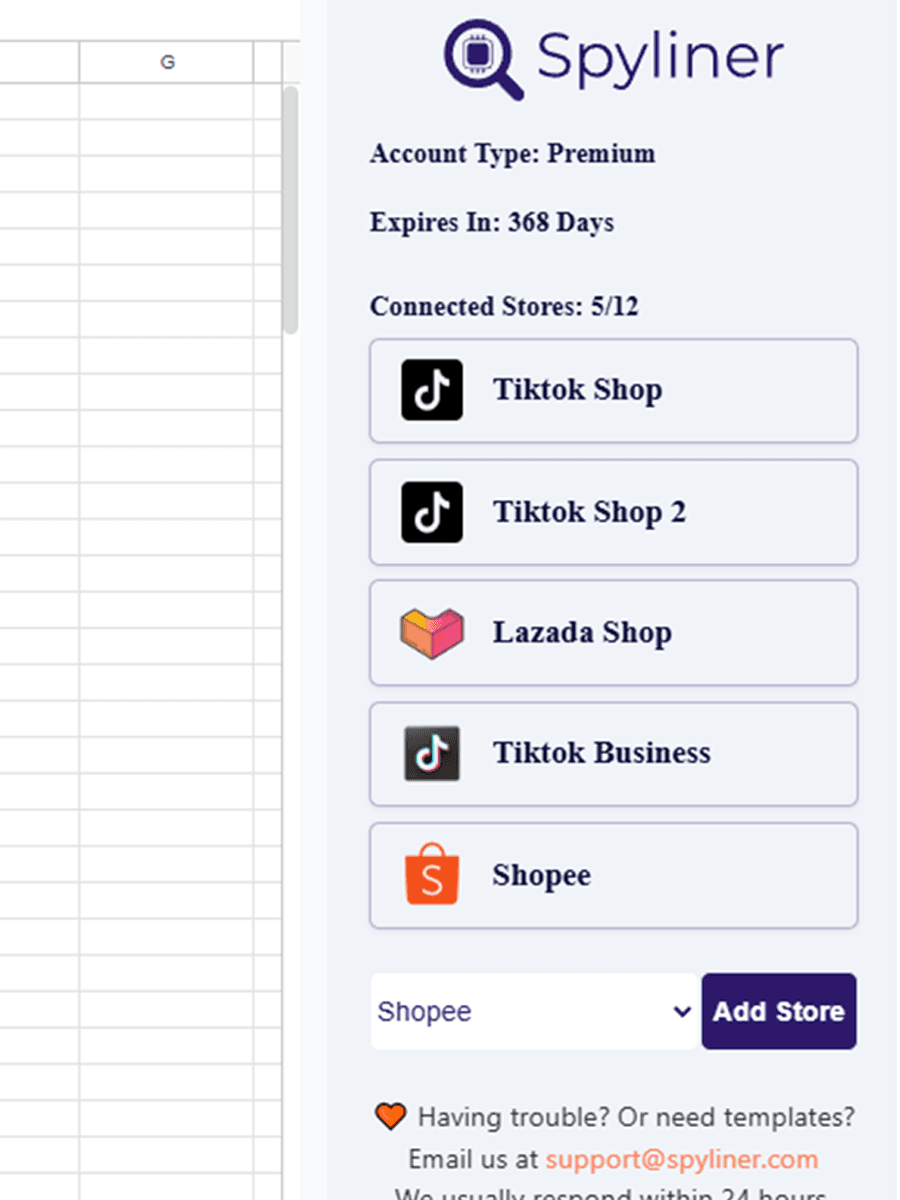
Install and open Spyliner
In Google Sheets, open Extensions, Spyliner, then Settings. Use the Google account that should own or operate the reporting workbook.
- 2
Connect the marketplace
Choose the supported Shopee, Lazada, or TikTok Shop connection and authorize the correct seller or advertising account on the marketplace page.
- 3
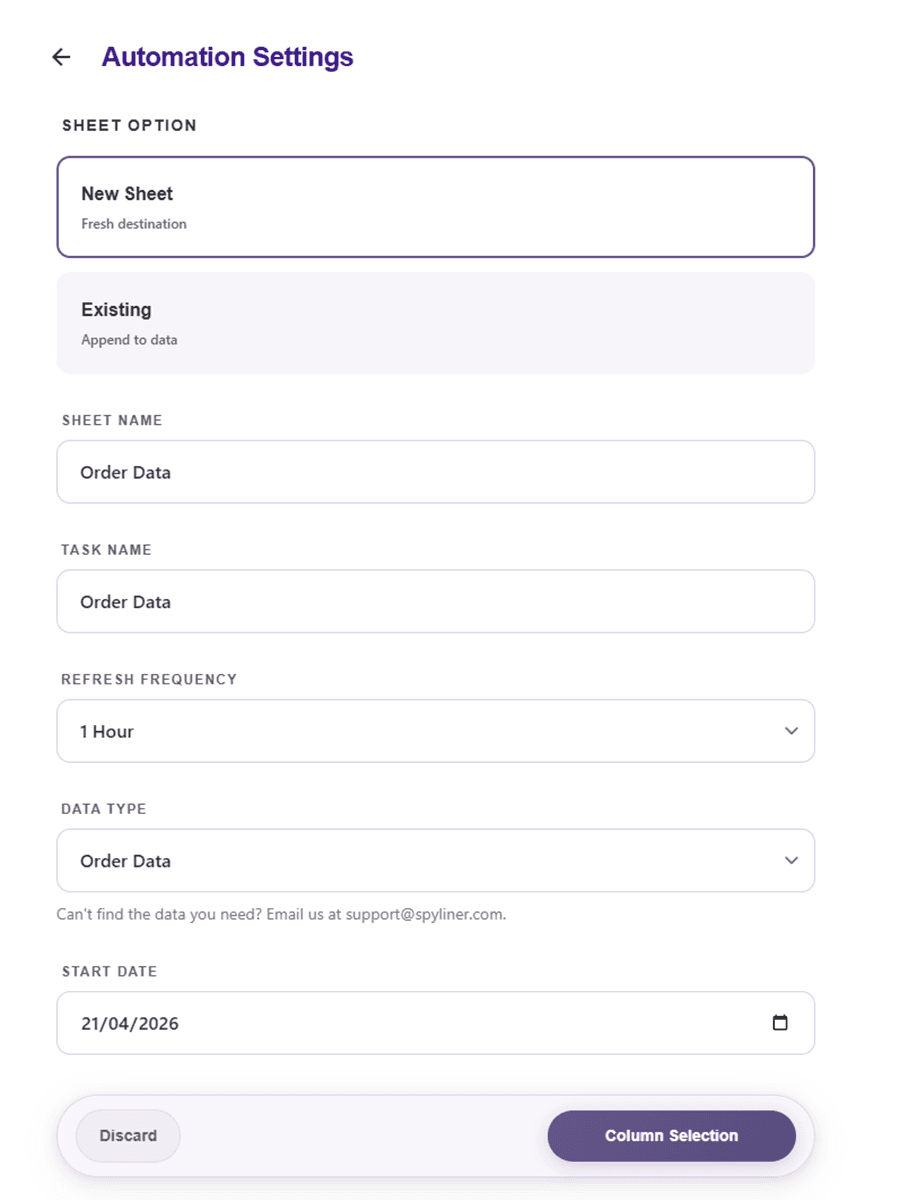
Select the store and dataset
Choose the connected store and the available orders, products, finance, advertising, or other dataset that answers the report question.
- 4
Set the date range
Select the supported reporting window. Start with a small range for the first test so validation is quick and easy.
- 5
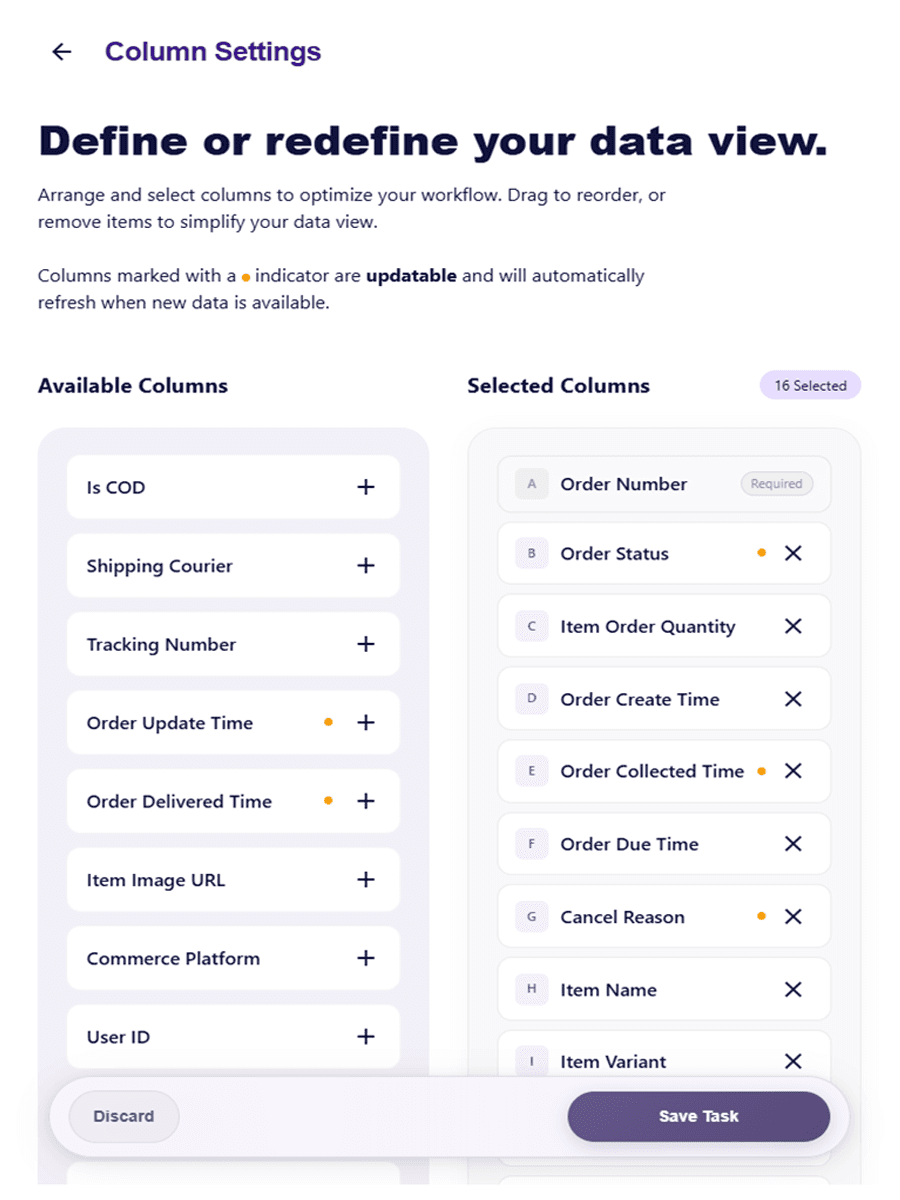
Choose and order columns
Keep the identifiers, timestamps, statuses, and measures the report needs. Remove unused fields and arrange columns before downstream formulas depend on their positions.
- 6
Choose the destination tab
Write into a dedicated raw-data tab with a clear name. Keep calculations, lookups, pivots, and charts in separate tabs.
- 7
Save and run the task
Choose manual refresh or an available automatic frequency, save the task, run it, and keep the spreadsheet open while the first result is written.
Do not skip this
Validate the first Spyliner result before scheduling it
Automation repeats whatever you configure, including mistakes. Compare a small sample of identifiers and values with Seller Center, then compare the report-level row count and totals. Check whether the dataset is one row per order, order item, transaction, campaign, product, or day before creating unique keys and formulas.
After the first result is correct, test a second run. Confirm that the task updates the intended tab, your analysis remains intact, and the latest refresh time is understandable to other users. Only then choose the ongoing schedule.
- ✓Check the correct store and account were authorized.
- ✓Check timestamps, currencies, signs, statuses, and blank values.
- ✓Check at least five records against the source dashboard.
- ✓Check formulas and pivots still cover the refreshed range.
When numbers look wrong
Troubleshoot the source, task, and workbook in that order
First confirm the marketplace connection is active and the selected store, dataset, date range, and filters are correct. Next review the task status and refresh time. Finally inspect the destination tab for renamed sheets, changed headers, protected ranges, formulas inside the raw area, or insufficient edit access.
A difference does not always mean a failed export. Marketplace dashboards can use different date bases, attribution windows, status rules, currencies, or update delays. Compare like with like and document the definition used by your spreadsheet.
Quick answers
Questions people usually ask
Should I replace or append data when importing manually?+
Replace a raw tab when the export is a complete snapshot for the required period. Append only when the report is incremental and you have a tested key and deduplication rule.
Will Spyliner overwrite my formulas?+
Keep marketplace output in dedicated raw-data tabs and build formulas or dashboards elsewhere. Validate the destination behavior with a small first task before relying on it.
Can I refresh a Spyliner report manually even if it has a schedule?+
Yes. You can run a saved task when you need current data without changing its saved automatic frequency.
Which method should a small seller choose?+
Manual export is enough for an occasional report. Spyliner becomes useful when repeated downloading, importing, and checking consumes time or causes inconsistent reports.