One reporting habit for Shopee, Lazada, and TikTok Shop
Connect each marketplace safely, keep multi-store data understandable, and stop rebuilding the same report three different ways.


Running more than one marketplace often means three dashboards, three export formats, and three slightly different definitions of a ‘normal’ order. The goal is not to pretend the platforms are identical. It is to give your team one consistent reporting habit.
Spyliner uses each marketplace’s own authorization flow, then lets you create separate, clearly named tasks that land in Google Sheets. The result is easier to operate—and much easier to explain to the next person who inherits the workbook.
Avoid the most common mix-up
Know which Google and marketplace accounts you are using
Use the Google account that will own the Spyliner tasks and can edit the destination workbook. Before authorizing, check the seller account, shop, advertiser, and region shown by the marketplace.
Commerce and advertising connections can be separate. Treat Shopee Ads or TikTok Ads as their own source instead of assuming the seller connection includes every advertising dataset.
The same rhythm on every platform
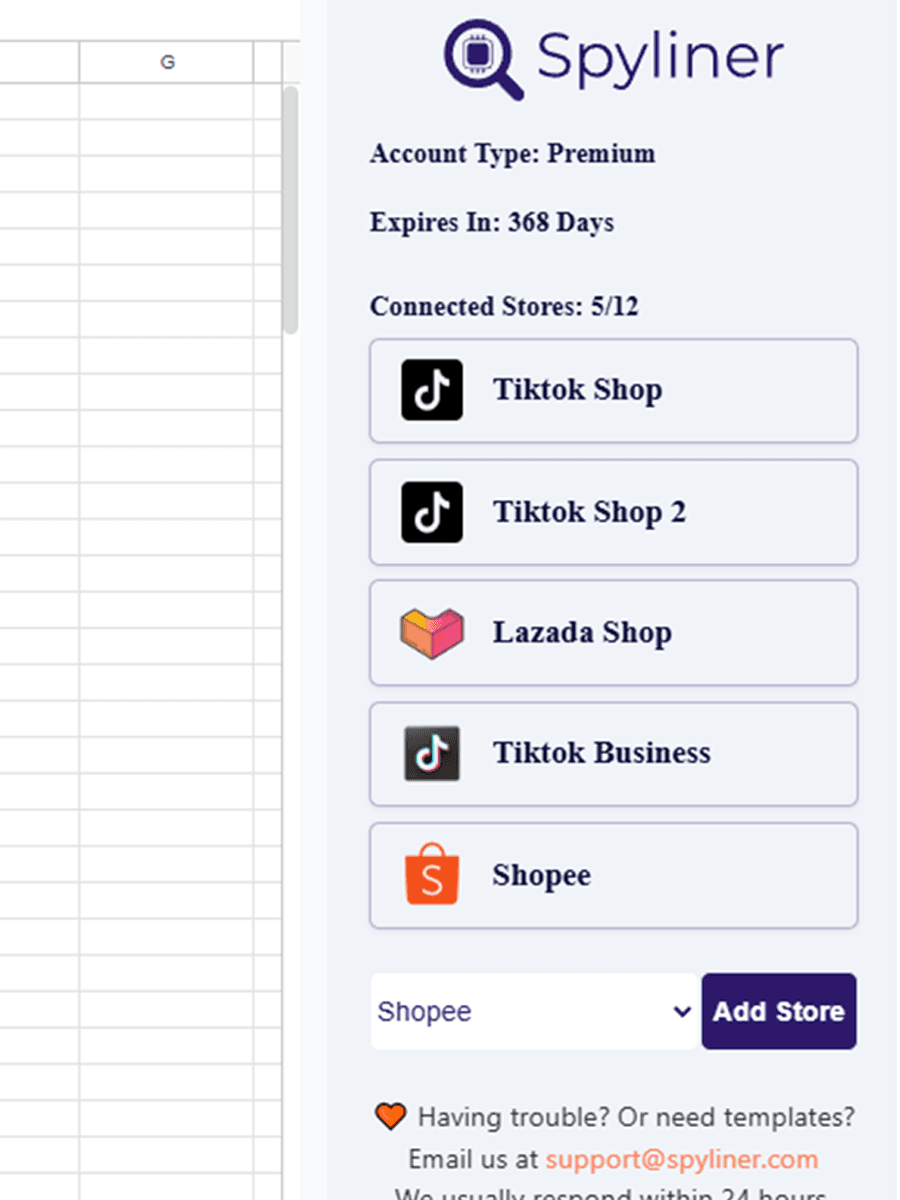
Connect a store without sharing a password
- 1
Open Spyliner
Go to Extensions, Spyliner, Settings in Google Sheets.
- 2
Choose the platform
Select the commerce or advertising connection you actually need.
- 3
Click Add Store
Spyliner opens the marketplace’s authorization page in a new tab.
- 4
Review and approve
Confirm the account and permissions on the vendor page, then return to Sheets.
- 5
Name the first task clearly
Include the marketplace, store, and dataset so nobody has to guess later.
Make consolidation possible
Use a layout that survives your second and third store
- ✓Create one task per store and dataset so failures remain traceable.
- ✓Use consistent columns for datasets you plan to combine.
- ✓Keep raw tabs separate and build consolidated views with formulas, queries, or pivots.
- ✓Use names such as Shopee ID — Orders and TikTok MY — Orders.
Connections need occasional care
What to do when marketplace access expires
Open App Health Center or use Refresh connection inside the store window. If authorization is inactive, add the same store again with the same marketplace account; Spyliner can retain its task settings.
If the wrong shop appears, stop before running tasks. Recheck the vendor account and region rather than trying to correct mixed data after it reaches the workbook.
Quick answers
Questions people usually ask
Do I give Spyliner my marketplace password?+
No. You authorize on the marketplace’s own page. Credentials should never be placed in Google Sheets.
Can I connect several stores?+
Yes, up to the store limit of your plan. Clear task names become increasingly important as you add stores.
Does every marketplace offer the same datasets?+
No. Available datasets and fields depend on the marketplace and connection type.