How to Export Shopee Orders to Google Sheets
A detailed Shopee order-export workflow covering manual files, workbook structure, validation, recurring refreshes, and common reporting mistakes.


Shopee order data can support fulfilment checks, sales reporting, cancellation analysis, product performance, and finance reconciliation. The correct export depends on the question, because order, item, shipping, and finance reports do not always use the same grain or date definition.
This guide explains how to move an available Shopee order report into Google Sheets manually and how to configure a recurring supported dataset with Spyliner.
Define the dataset
Choose order-level, item-level, shipping, or finance data intentionally
An order-level report is useful for order counts and status. Item-level data is better for SKU and unit analysis. Shipping data explains fulfilment events, while finance data is needed for fees and settlement. One file may not contain every field required for reconciliation.
Write down the desired grain, date basis, statuses, stores, and columns before exporting. Preserve Shopee's source identifiers so later reports can be linked without relying on product names.
Manual method
Export and import Shopee orders step by step
- 1
Open the correct shop
Confirm the seller region and shop name before opening the available order or report area.
- 2
Set date and status filters
Record whether the period uses order creation, payment, shipment, completion, or another available date.
- 3
Generate the export
Download the available CSV or spreadsheet and keep an untouched dated copy.
- 4
Import into a raw tab
Use File, Import in Google Sheets and keep the report separate from formulas and dashboards.
- 5
Protect identifiers
Format order IDs, tracking numbers, SKU codes, and other identifiers as text where necessary.
- 6
Validate the result
Compare row count, several order IDs, statuses, dates, and totals with Seller Centre.
Prepare for analysis
Model Shopee orders at the correct grain
- ✓Use order ID for order-level summaries only after checking whether the source repeats orders.
- ✓Use order-item or line identifiers for SKU-level analysis.
- ✓Keep source status and create a separate grouped status for reporting.
- ✓Retain original currency and discount fields before calculating net values.
- ✓Track the maximum source timestamp and refresh time in a control tab.
Recurring method
Create a supported Shopee task in Spyliner
- 1
Open Spyliner Settings
Open Extensions, Spyliner, Settings from the destination Google Sheet.
- 2
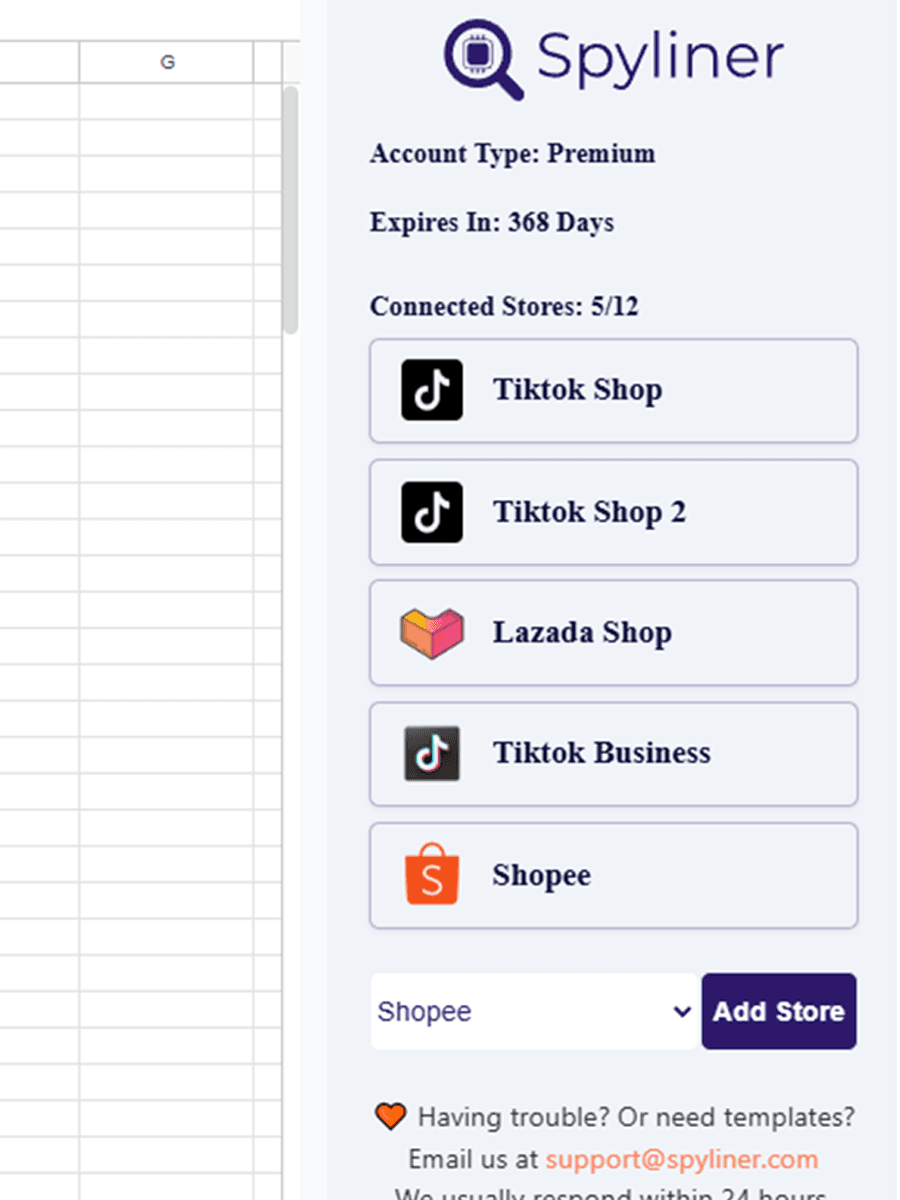
Connect Shopee
Authorize the correct supported Shopee seller account through Shopee's authorization flow.
- 3
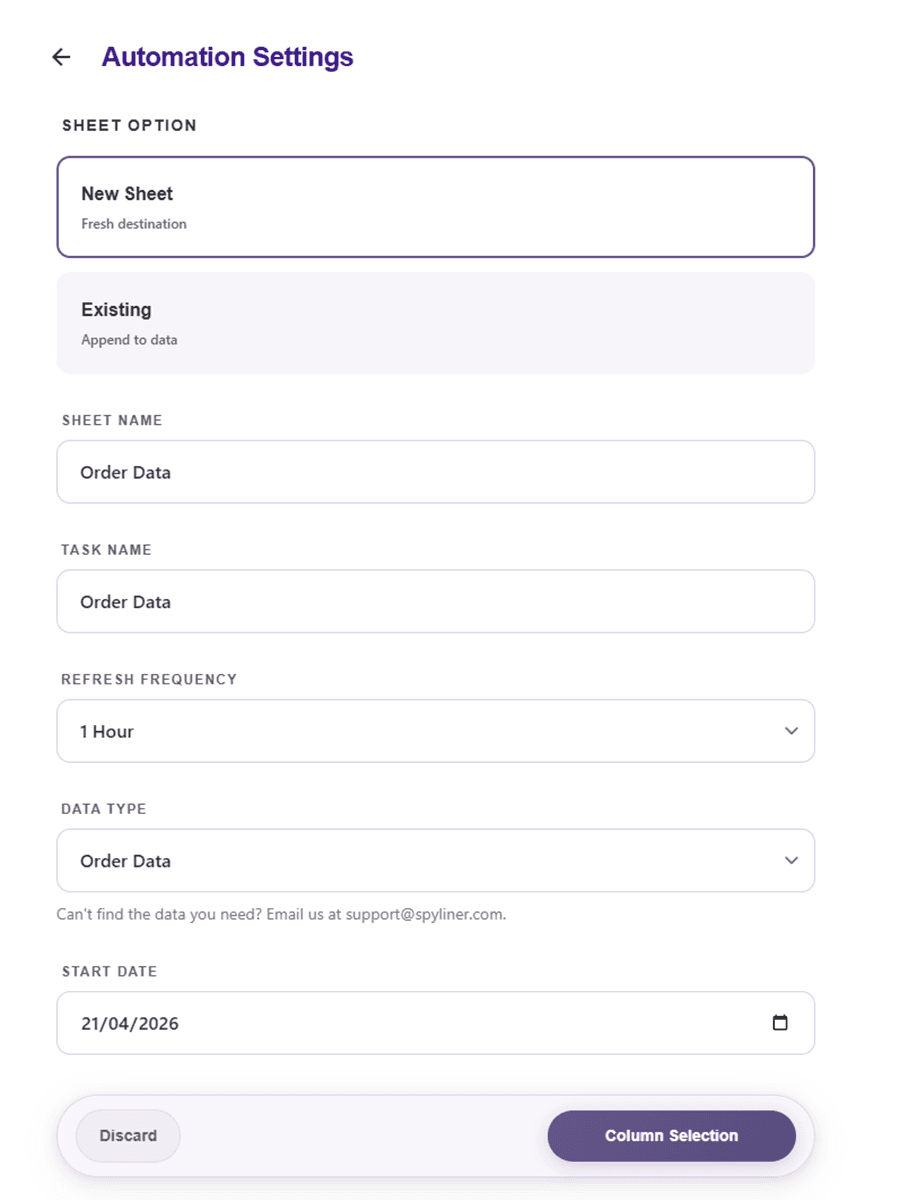
Choose shop and dataset
Select the shop and available order-related dataset that matches your report grain.
- 4
Select range and columns
Start with a short period and keep the identifiers, statuses, timestamps, and values needed downstream.
- 5
Choose a raw destination tab
Use a clearly named tab and keep transformations elsewhere.
- 6
Run, validate, then schedule
Compare the first output with Seller Centre and only then choose an available refresh frequency.
Trust before scale
Add checks for duplicates, late changes, and stale data
Order status can change after the first appearance, so a report that looked correct yesterday may need updates. Check duplicate keys at the source grain, blank IDs, unexpected statuses, and the latest order timestamp after every refresh.
When totals differ, compare store, timezone, date basis, status scope, currency, and whether the Seller Centre screen includes orders outside the exported report.
Quick answers
Questions people usually ask
Why are Shopee order IDs duplicated?+
The report may be item-, package-, or event-level rather than order-level. Inspect the grain before deduplicating.
Can one Shopee export be used for payout reconciliation?+
Usually you also need finance or settlement data because order reports may not contain every fee, adjustment, refund, or payout reference.
Can Spyliner refresh Shopee data automatically?+
A saved supported task can use an available refresh frequency after you validate its shop, dataset, columns, and destination.